

Keep the metronome playing while you read music
On this page
Browser Metronome can keep the click going while you read sheet music, chord charts or lesson notes in another tab or app. Start the metronome first, then open your music. Background playback depends on your browser and device.
Start the click before opening your music
- Open the metronome and choose your tempo, meter and click pattern.
- Check the metronome volume, your device’s media volume and your speakers or headphones.
- Press Start. Once you hear a steady click, switch to your music.
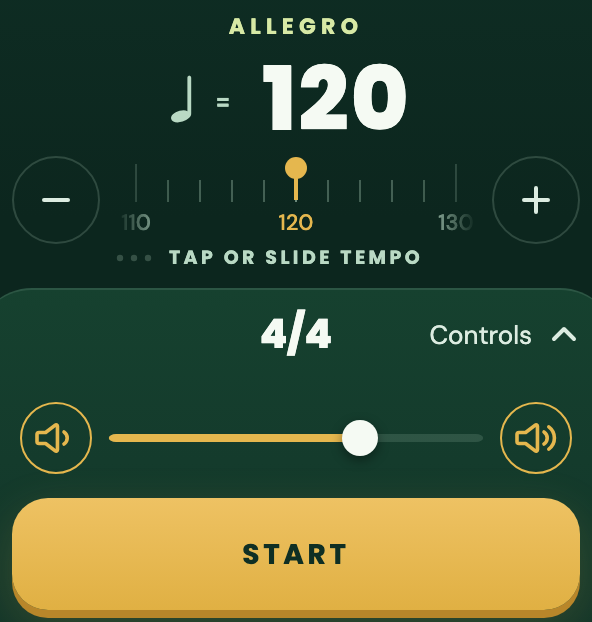
Quick Metronome · 120 BPM
- Start the click. Set your tempo and check the volume. Once you hear the click, open your music in another tab or app.
You can use Quick Metronome or a Speed, Gap or Session practice. Return to the metronome when you want to see the visual beats, adjust the settings or stop.
Read music in another browser tab
- Start the metronome in its own tab.
- Open your score, chord chart or lesson in another tab of the same browser.
- Leave the metronome tab open while you practise.
You do not need to install the app to use another browser tab. If the browser pauses playback when you switch tabs, return to the metronome and follow the recovery steps below.
Switching to another app or locking the screen can behave differently from changing tabs. Try each one you plan to use. Closing the metronome tab stops playback.
Use the Home Screen app while reading music
Supported browsers let you install Browser Metronome and launch it from your Home Screen or app launcher. This type of installed website is called a progressive web app (PWA).
- Install it using the instructions for your browser below.
- Open Browser Metronome from its installed icon, choose your settings and press Start.
- Switch to the app containing your music. Leave the metronome app open.
- Return to Browser Metronome to adjust the tempo or stop.
Playback may continue when you switch apps or lock the screen, depending on your browser, operating system and device. A phone call, another audio app or the browser pausing the app can stop the click. If that happens, return to the metronome to continue.
Links from lessons or other apps may open a browser tab. Launch the installed icon when you want to use the Home Screen app. If you also need to practise without a connection, follow the offline guide.
Install with Safari on iPhone or iPad
Open Browser Metronome in Safari, then add it to your Home Screen.
- On iPhone, open Share. If it is not visible, open the Page Menu and choose Share.
- Choose Add to Home Screen. Scroll through the actions if needed.
- If Open as Web App appears, turn it on, then choose Add.
- Launch Browser Metronome from its new Home Screen icon.
On iPad, open Share, then More or View More, and choose Add to Home Screen. If Open as Web App appears, turn it on before choosing Add. On iPhone, if Add to Home Screen is missing, choose Edit Actions in the Share menu to add it.
Menu positions can vary by software version. See Apple’s iPhone instructions or Apple’s iPad instructions if your screen looks different.
Install with Chrome on Android or desktop
Open Browser Metronome in Chrome and use the installation option when offered.
- On Android, open More beside the address bar, then choose Install and create shortcut, then Install.
- On desktop, open More, then Cast, save and share, then Install page as app. You may also see an Install button in the address bar.
- Follow the confirmation, then launch Browser Metronome from its installed icon.
A shortcut may open a regular browser tab. If your browser does not offer app installation, you can still use another browser tab where playback is supported.
If the menus differ, check Google’s instructions for Chrome on Android or Chrome on desktop.
Try switching before your practice
- Start the click and switch to your music for a short practice.
- Listen for a steady click, then return to the metronome.
- If you plan to use another app, try that app switch too.
- If you plan to lock the screen, try that separately. Keep the metronome visible if playback stops.
Use the speakers or headphones you intend to practise with. Check again after changing devices or updating your browser. Keeping the screen awake only helps while the metronome is visible.
If the click stops
Return to the metronome. Read the message and follow the button shown.
- Resume: tap to continue where the practice paused.
- Start: start again with your current settings. Practice progress and count-in start over.
- If you closed the page: reopen it and check your settings before starting again.

Practice paused
- Tap Resume to continue. Resume picks up where you paused. Stop ends the practice.
A Gap Trainer’s Silent section and muted beats are intentional. If the metronome appears to be running but you cannot hear it, check the rhythm, volume and output device using sound and device help.